
The “Jiggle Physics” addon is yet another high-quality, free “Dynamic Bones” addon for Blender. It is a fork of the Wiggle 2 addon but uses a different physics solver based on code from the Unity Jiggle Physics plugin.
“Jiggle Physics” supports optimized bone collisions.
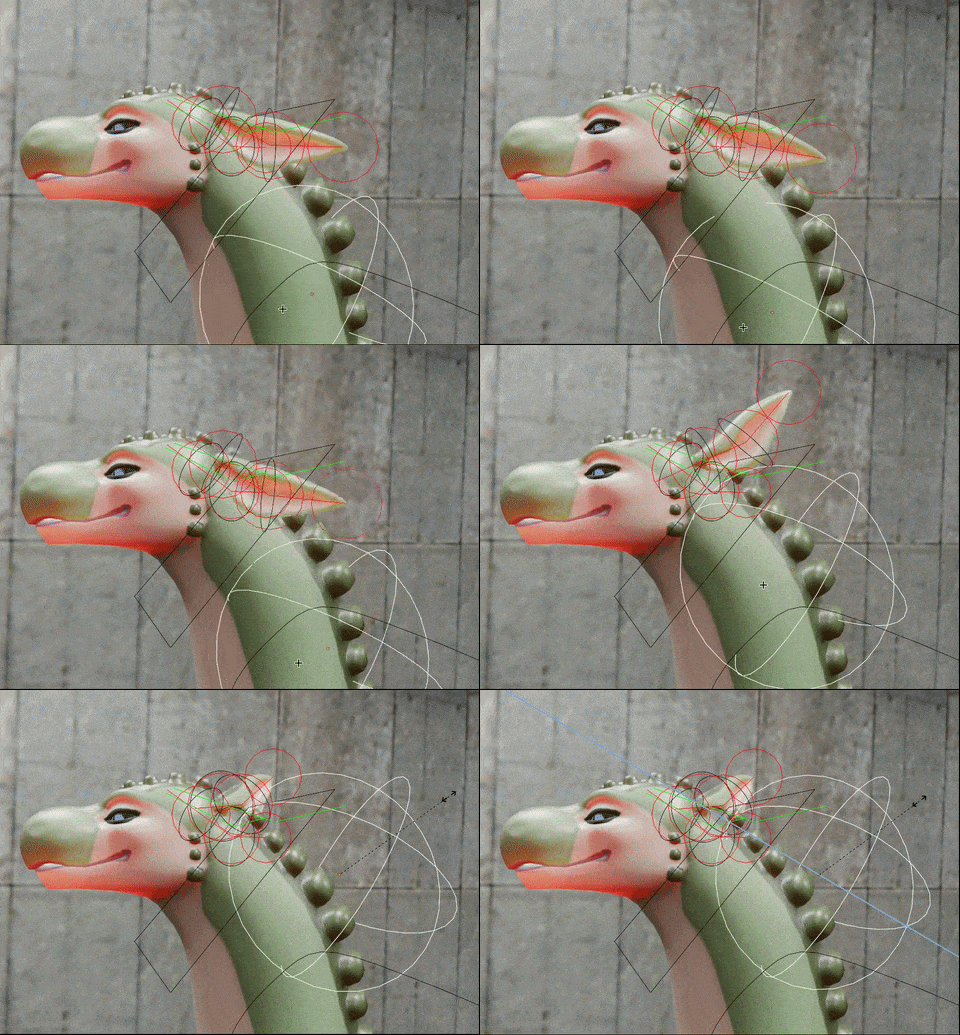
In other similar addons you usually need to choose between bone animation or simulation. In other words keyframed bones cannot be simulated or the simulation fully overrides the keyframes. However, Jiggle Physics” lets you seamlessly combine keyframed bone animation and bone physics.
Jiggle Physics Extension Installation
Jiggle Physics is available on the Blender Extensions platform, which means that you can easily install it right from Blender. Go to Edit > Preferences > Extensions, enter “jiggle physics” in the search field and click install next to the addon.
Jiggle Physics - Basic Usage
If you’re familiar with Wiggle 2, you’ll find the Jiggle Physics workflow familiar.
The addon is found under N-Panel > “Animation” tab > Jiggle Physics.
To initialize physics calculations in the scene, click on 👁Scene Muted.
In Pose Mode, select the bones that you want to “jiggle” and click Enable Bone Jiggle. This will make all selected bones jiggly.
Finally, play with the physics setting to achieve the wiggle effect you need. If you select multiple bones, the settings will be applied to all selected bones at once (there is no need to hold Alt).

Jiggle Physics - Collisions
To make your simulated bones collide with objects in the scene, it is recommended to use Sphere Empties. Collision with meshes is not recommended for performance reasons. If you only need collision with a single Empty, choose Collisions > Object and set your Empty in the field below. This is a per-bone setting so each bone can collide with a different empty.
If you need multiple collision objects, create a Collection (e.g. “Collision Empties”) and place all collision objects in it. Switch Collisions to Collection and set your new collection in the field below.
Jiggle Physics VS Wiggle 2
A major difference between “Jiggle Physics” and “Wiggle 2” is that Wiggle 2 splits the physics simulation into Bone Head/Tail whereas Jiggle Physics automatically applies physics to the whole bone. This makes Jiggle Physics feel slightly more streamlined.
On the other hand, Wiggle 2 may offer an advantage when using bone stretch in your simulations. Jiggle Physics needs the bones to be disconnected to achieve a “squash-and-stretch” effect by moving the bones away from (or closer to) each other. However, that is not real “squash-and-stretch” because it does not achieve volume preservation (objects do not get thinner when they stretch and thicker when they squash). That is unfortunate, although it is only noticeable with extreme stretching. Wiggle 2 uses real bone stretch with volume preservation.
Since the Wiggle 2 addon has not been updated recently and does not (as of this writing) work with Blender 5 and later, Jiggle Physics is a solid alternative.